Settings & Customization
App tour: Library, Progress, Settings
A map of the three tabs, Library, Progress and Settings, and where each feature of Audiofirst lives.
What it does
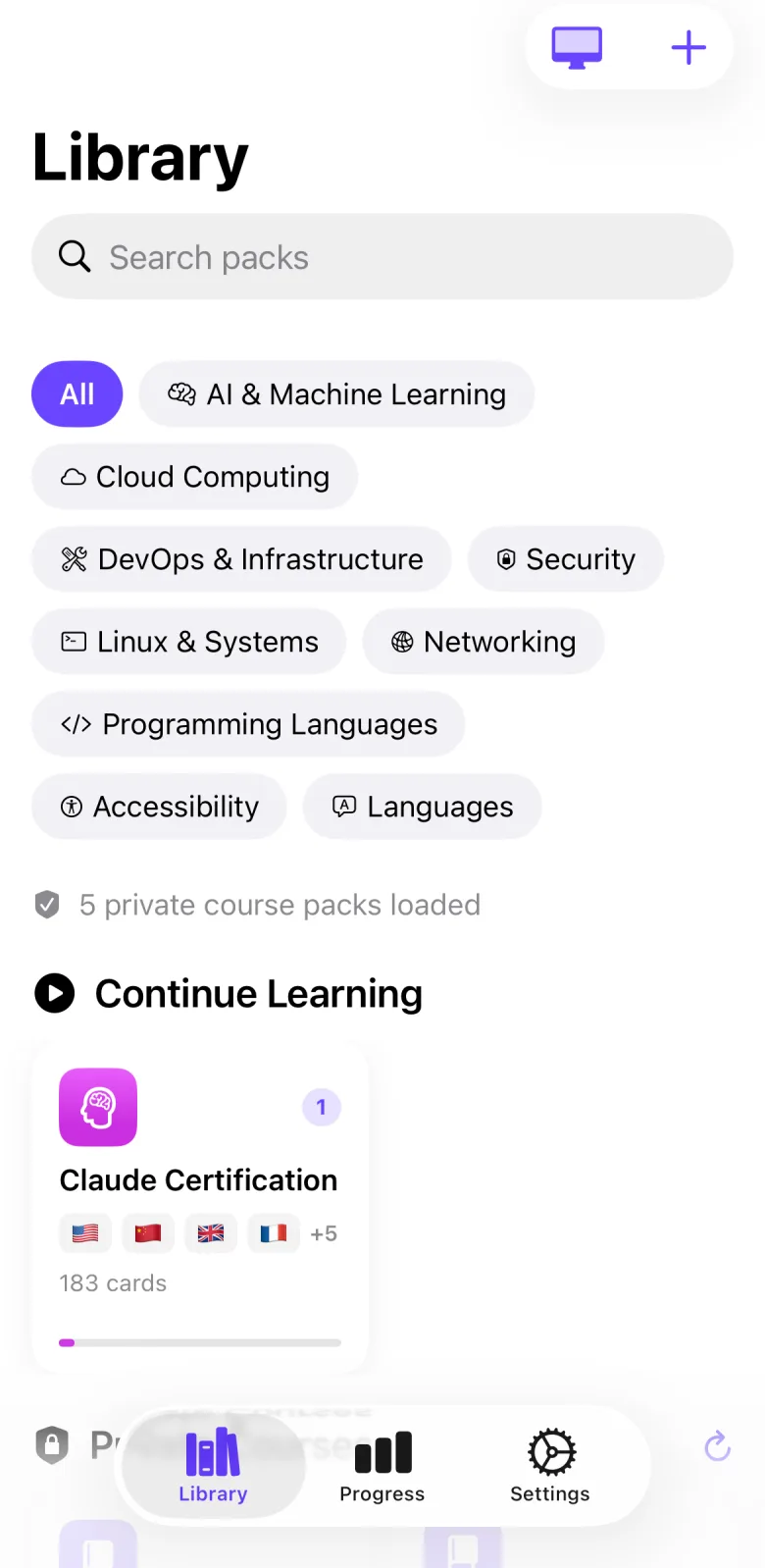
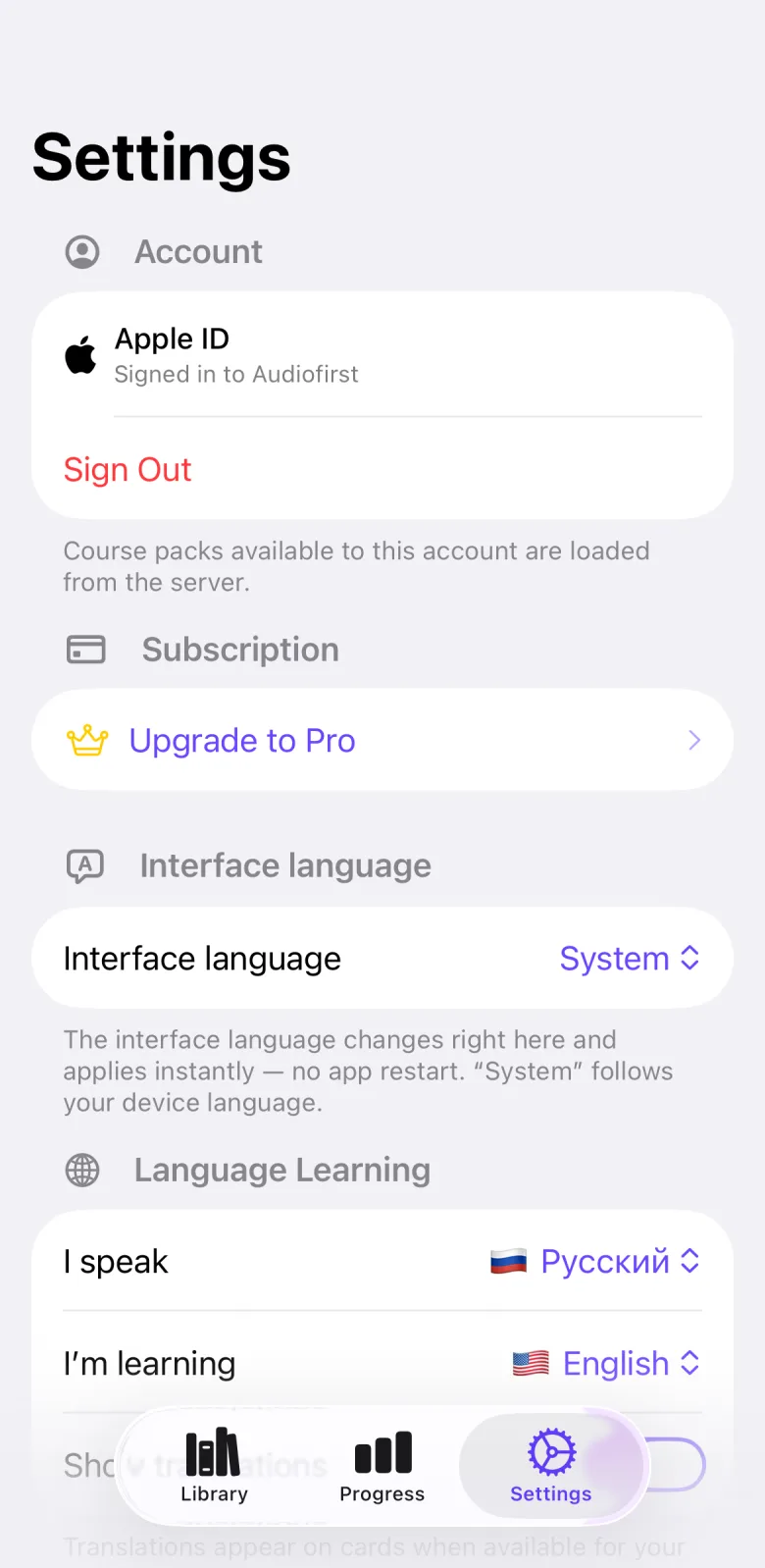
Audiofirst has three tabs at the bottom of the screen. Library holds your packs of flashcards and is where you start a study session. Progress shows what is due, your streaks and your results per pack. Settings holds your account, languages, voice, session timing, appearance, data controls and the in-app help. Switching tabs stops any card that is being read aloud.
How to use it
- Open the app. The first time, the onboarding walkthrough comes first.
- Tap Library to see your packs. Use Search packs to find one.
- Tap a pack to open it and start a session.
- To make your own cards, tap the Create menu in Library and choose Create Pack. The same menu has Categories.
- Tap Progress to see the cards due today, your current and longest streak, and the numbers for each pack you have studied.
- Tap Settings to change languages, voice, session timing and appearance, to manage your data, or to read the help under About.
Settings that affect it
- Nothing in Settings changes the three tabs themselves.
- Settings → Memory techniques → Smart cards (on by default) adds the Blind spots and Stubborn cards cards to Progress.
- Settings → Session → Offer import from screenshots (on by default) offers to turn screenshots you take outside the app into cards.
Limits and honest caveats
- Sections of Library appear only when they apply. Start here shows after onboarding if your goal has a matching bundled pack that you have not started. Continue Learning shows packs in progress. Private Courses shows private packs when you are signed in.
- Progress is empty until you finish a session. Before that it shows No progress yet.
- Some features need a network, an account or a paid plan. The manual for each feature says which.
FAQ
Where can I read more about each feature?
Each feature has its own manual. For studying, read Classic session, Focus session, Quiz mode, Exam mode, Voice answers and Live voice tutor. For cards and packs, read Pack library, Pack details, Create pack, Screenshot import, Photo import and Link import. For progress, read Progress dashboard and Spaced repetition. For settings, read Language settings, Voice settings, Session pacing, Appearance, Account, Subscription and Data privacy.
Where is the help inside the app?
Open Settings, scroll to About and tap Features & Help. The Help and about manual explains what it shows.
What happens when I open a shared card link?
A shared card link opens the app and offers to import that card. The Share card and Link import manuals describe it.
How do I see the first-run walkthrough again?
Open Settings, go to Data & Privacy and tap Restart Onboarding. The Onboarding manual describes the pages.